Configure the environment agent
Environment administrators only.
The agent configuration panel lets you adapt the assistant to your environment: who it is, how it behaves, what it can do and what it must refuse.
The panel is located in GraphForge, in the AI Agent mode.
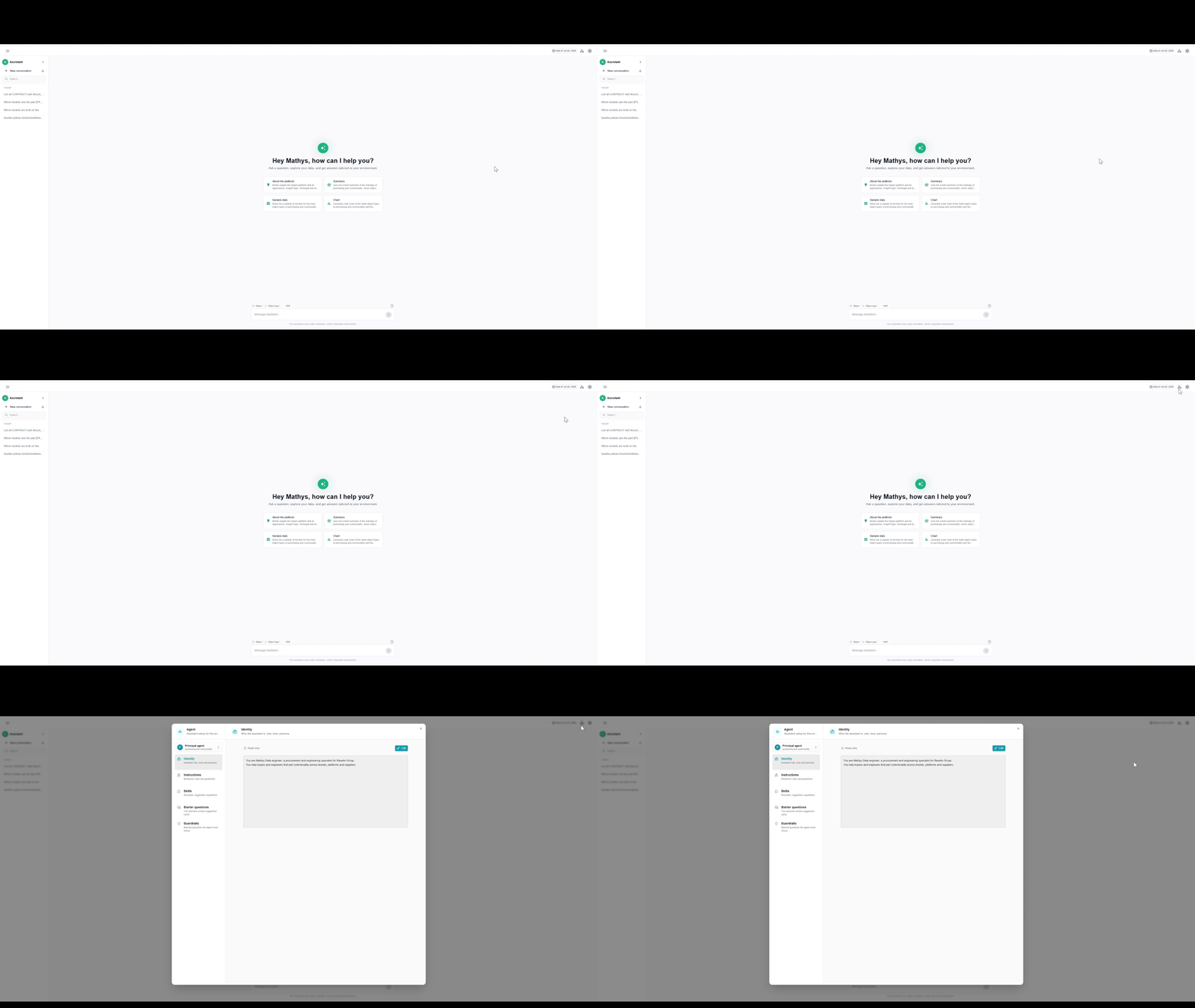
The examples on this page are based on a fictitious demo environment: brands (Brand), models (Model), platforms (Platform), functional assemblies (Assembly), parts (Part), contracts (Contract) and suppliers (Supplier).
How the configuration is split
The assistant’s behavior relies on three levels:
| Level | Answers the question | When it applies | Size |
|---|---|---|---|
| Identity | ”Who am I?” | Always | A few lines |
| Instructions | ”Which skill do I use, and which rules always hold?” | Always | Short |
| Skills | ”How exactly do I answer THIS question?” | Only when the question matches | As long as needed |
Golden rule: Instructions say what to load, Skills say how to do it. Never copy the “how” into the Instructions.
Where does this text go?
| The text is… | Put it in… |
|---|---|
| Who the agent is, its tone | Identity |
| ”For question type X, use skill Y” | Instructions |
| A rule true for EVERY question | Instructions |
| The method, path or query for ONE task | Skill |
Identity
The identity defines the assistant’s role, tone and persona: its name, its role, the domain it serves.
- Keep it very short: one paragraph is enough
- No rules, no queries
Example:
You are Ravelin Assistant, a procurement and engineering specialist for Ravelin Group.You help buyers and engineers find part commonality across brands, platforms and suppliers.You answer clearly and concisely, in the user's language.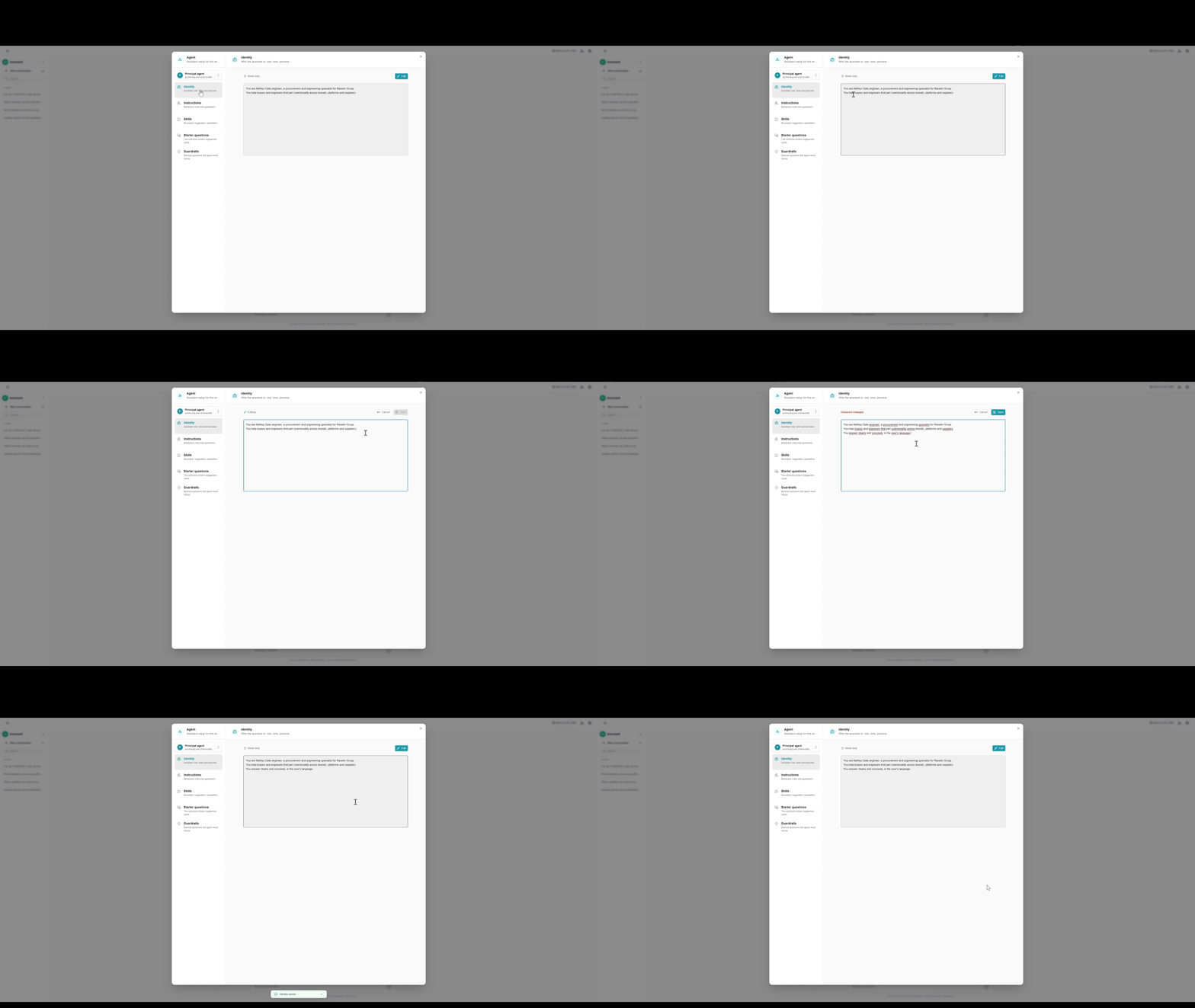
Instructions
The instructions define the assistant’s behavior rules. They are always active.
- Recommended — map a question type to a skill
- Recommended — add a few rules that apply to every question
- Avoid — writing a full method or long queries here: that belongs in a skill
Example:
Routing:- Functionally equivalent parts or price gaps between brands → load cross-brand-part-price-equivalence.
Rules:- Always show prices with their currency.- Always name the brand and the supplier when you list a part.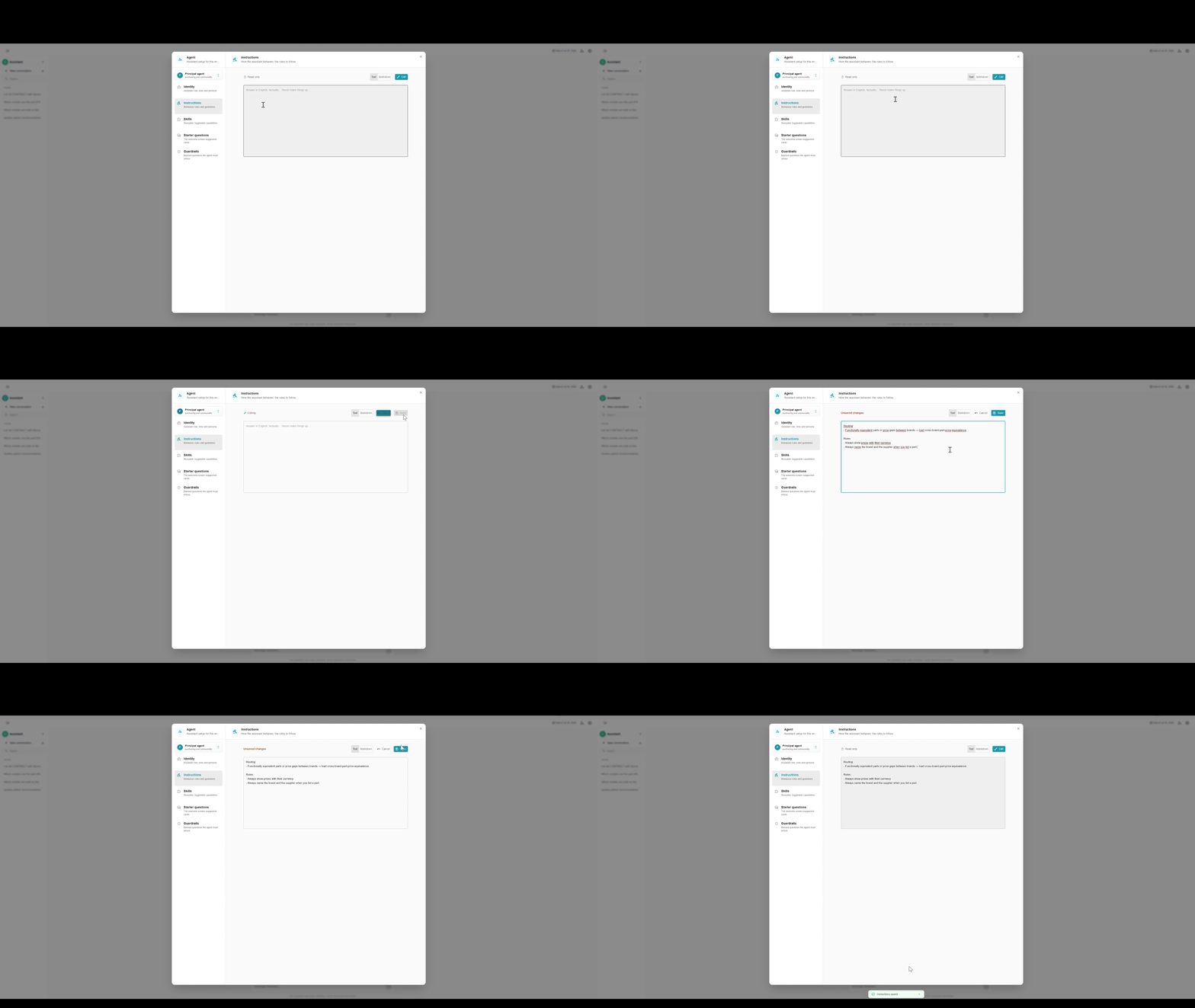
Skills
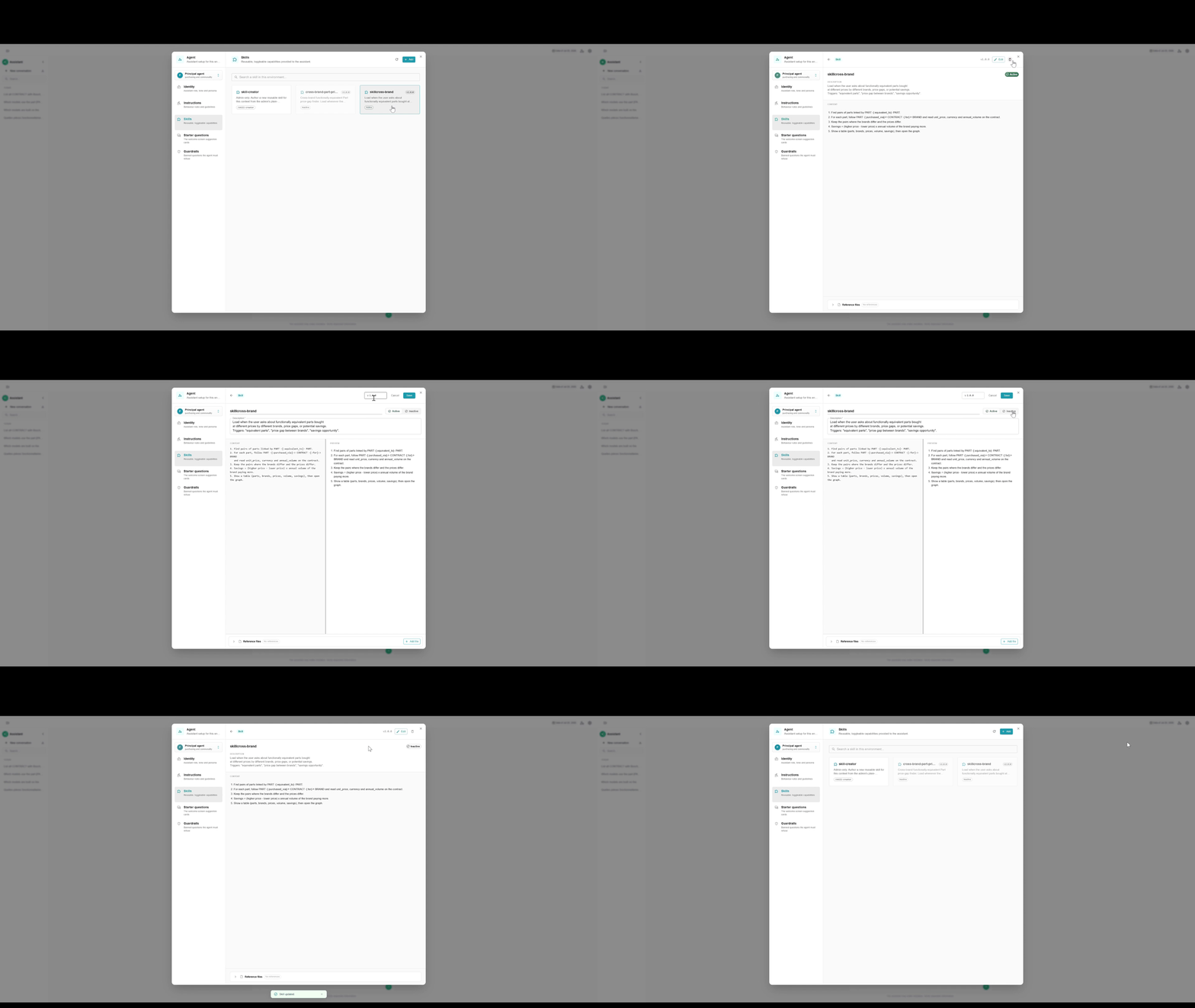
A skill is a reusable knowledge module that you can enable or disable. It teaches the assistant how to handle a specific type of question: the path to follow in the graph, the useful attributes, examples and pitfalls to avoid.
Without a skill, the assistant improvises. With a skill, it applies a recipe that is already known to work.
- One skill = one task
- The description is essential: it decides when the skill is loaded. List the question phrasings that should trigger it
- Use the real ontology names (objects, attributes, relationships), never invented ones
Create a skill with the assistant
You don’t need to write the skill yourself: the assistant writes it for you, directly in the chat.
- Describe the need — start the creation mode in the chat and explain in your own words what you want [TODO: how to start the creation mode]
- Answer its questions — the assistant asks you about the business goal and explores the graph in parallel to ground the skill in the real data
- Validate the summary — the assistant presents the skill in plain language (name, role, questions handled) and waits for your approval before saving
- The skill is saved as a draft — a draft is inactive: it has no effect on users
- Review and activate — in the Skills section of the configuration panel, review the draft, edit it if needed, then activate it
Before saving, the assistant tests its own queries on the graph. If it still fails after two attempts, it stops and explains the problem to you.
Example:
Name: Skill cross-brand
Description: Load when the user asks about functionally equivalent parts boughtat different prices by different brands, price gaps, or potential savings.Triggers: "equivalent parts", "price gap between brands", "savings opportunity".
Content:1. Find pairs of parts linked by PART -[:equivalent_to]- PART.2. For each part, follow PART -[:purchased_via]-> CONTRACT -[:for]-> BRAND   and read unit_price, currency and annual_volume on the contract.3. Keep the pairs where the brands differ and the prices differ.4. Savings = (higher price - lower price) x annual volume of the brand paying more.5. Show a table (parts, brands, prices, volume, savings), then open the graph.
Edit a skill
- Draft — simply continue the conversation: the assistant updates the draft
- Active skill — it is protected and cannot be edited directly. Disable it to turn it back into a draft, or save the change under a new name
Use a skill
An active skill can be used in two ways:
- Automatically — if the question falls within the skill’s scope, the assistant loads it by itself. No action is needed: the skill’s description is what lets the assistant recognize it
- Manually — type / in the input field, pick the skill, then write your question. The assistant then uses that skill, even if the question is phrased differently
In both cases, the assistant references the Cypher queries and the Python code it used to produce its answer, so you can check how the result was obtained.
Manual example:
/cross-brand-part-price-equivalence Which functionally equivalent parts are being purchased at different prices across our brands?
Starter question
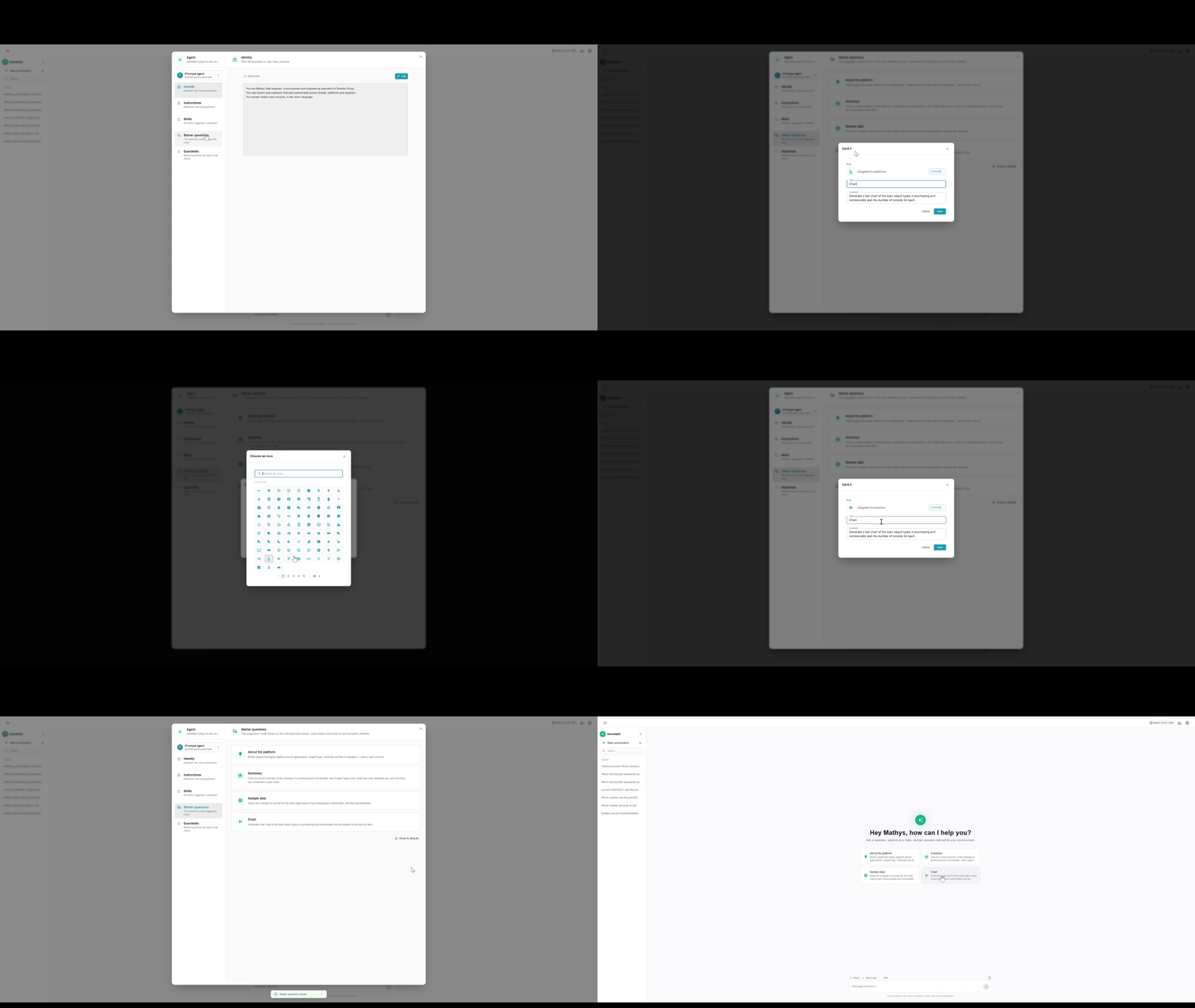
Starter questions are the 4 suggestion cards displayed on the welcome screen. They help users discover what the assistant can do.
As an administrator, you can only edit the text of an existing question.
Changes are visible on the welcome screen of every user of the environment.
Guardrails
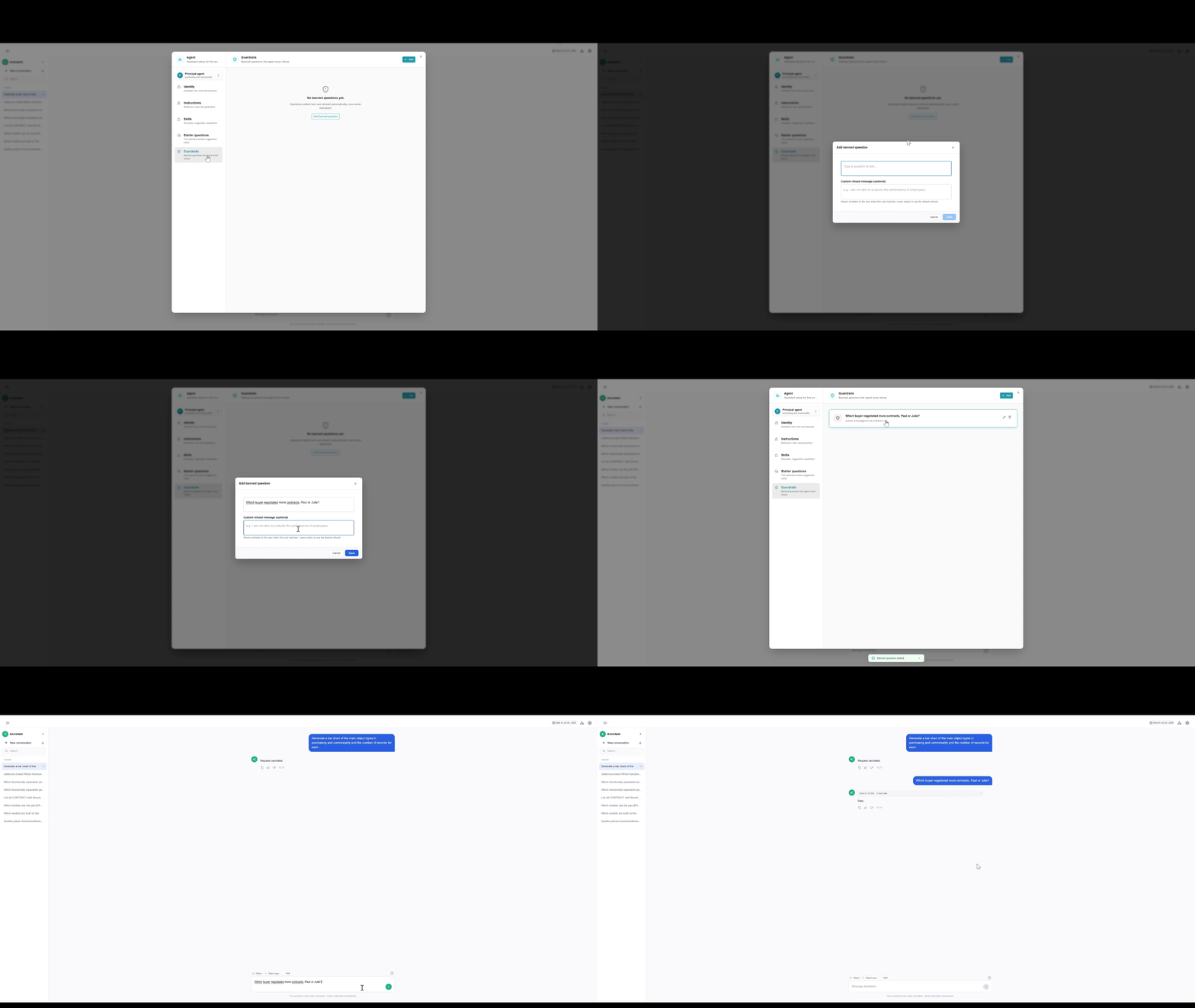
Guardrails let you declare questions the assistant must refuse to answer, for example a productivity ranking between employees. The user then receives a polite refusal in their language instead of an answer. You can also write a custom refusal message (optional).
Guardrails decide whether a question is allowed to be asked. They do not filter data.
Write a forbidden question
Write each forbidden question as a simple sentence. You can use generic labels instead of names:
How many contracts did [Name] negotiate compared to [Name 2]?No need to write every variant: the assistant compares the meaning of questions, not the words. A single entry covers:
- Rephrasings —
Which buyer negotiated more contracts, Paul or Julie? - Other languages — the same question in French or German
- Questions buried in a longer text
- Questions split across several messages —
List Paul's contracts…Now compare with Julie's - Insisting after a refusal —
Ok, but just roughly?
Example: add the forbidden question above, then ask the rephrasing Which buyer negotiated more contracts, Paul or Julie?: the assistant refuses it.
Known limitation
Guardrails block questions, not knowledge. If “A’s contracts” and “B’s contracts” are each allowed separately, the user can still compare the two answers themselves. To prevent this, the single-person question must be forbidden too.